Managing Documents in the Acquire Queue
The Document Queue includes all uploaded documents and documents for which a workflow has been initiated in SureETMF.
Viewing the Acquire Queue
To view the list of documents in the Document Queue, click SureETMF > Acquire Queue.
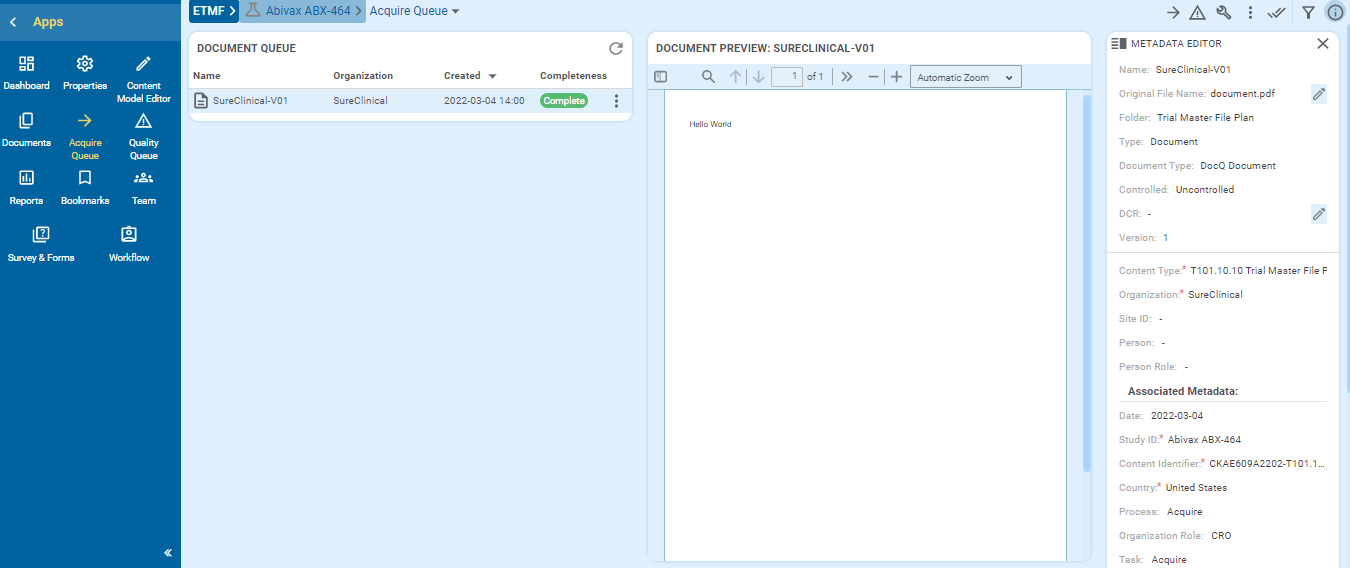
The Document Queue shows details such as the document name, organization name, status, and the date of upload.
Note: A document status of Complete indicates that there are no system metadata errors.
Working with a Selected Document
- Select a document in the Document Queue.
- Document Preview displays a preview of the selected document.
- Metadata Editor displays the metadata corresponding to the document.
- Click Edit to update the metadata information, then click Save to save the changes.
Click Clone to clone metadata from another document — select the required document and click Select. - Click
 to close the Metadata Editor.
- Click Edit to update the metadata information, then click Save to save the changes.
Document Actions Menu
Click  next to a document to open its actions menu, then select one of the following options:
- Document Details — view the full document details.
- Open Document — open the document in the viewer.
- Move to Archive — move completed documents to the archive. You can also click
 in the toolbar to perform this action.
 - Delete Document — delete the document. A confirmation message appears; click Delete to proceed.
- Find Document Duplicates — search for any duplicate documents in the application.
- Submit Discrepancy — report a document discrepancy. See Submitting a Document Discrepancy for more information.
- Edit Metadata — update the metadata information in the Metadata Editor tab, then click Save to save the changes.
- Assign Document — assign the document to selected users. Select the required users and click Select.
- Click Select All to select all users.
- Click next to an assigned user and select Remove Assignee to remove them. A confirmation message appears; click Yes to proceed.
- Get New Document — request another document. This opens the Upload Document Workflow, where you can initiate the workflow.
- Send for Review — send the document for review. This opens the Review Document Workflow, where you can initiate the workflow.
Toolbar Actions
The following actions are available from the toolbar:
- Click
 to report a document discrepancy. See Submitting a Document Discrepancy for more information.
 - Click in the toolbar to access:
 — add the document to the document tray.
 — download the document to your local computer.
 — print the document.
- Click
 to toggle between selecting a single document or multiple documents in the Document Queue.
Filtering the Document Queue
Click  to filter the list of documents in the Document Queue based on criteria such as document name, uploaded date, folders, organization, modified date, and document completeness status.
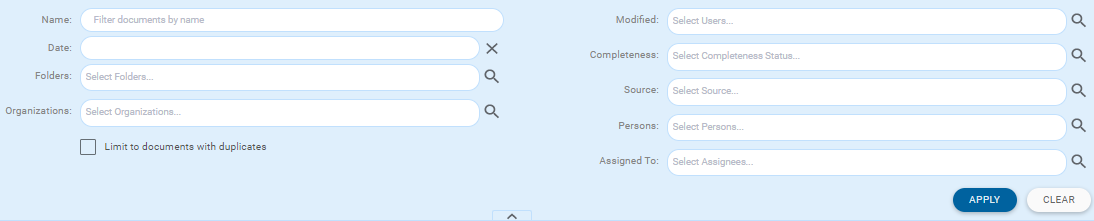
- Enter the required details and click Apply to apply the filter; click Clear to reset the filter fields.
You can also use the search box to search for a specific item. - Select the Limit to documents with duplicates check box to show only duplicate documents.
- Click
 to hide the filter panel.
Click  to open or close the Metadata Editor.